Support engine oil, spark plugs, front brake pads, back brake pads, air conditioner, brake liquid, coolant liquid, vehicle checking , etc. resetting for BMW. And the supported BMW models are F01/F02/F03/F04/F07/F10/F11/F12/F13/F18/F20/F30, etc.
Support Mercedes Benz new C Class, E Class models and Mercedes Benz VITO/VIANO/SPINTER.
Support the lifespan percentage resetting of engine oil for Buick, Cadillac etc.
The XTOOL cloud service platform allows X-100 PAD users to look up
maintenance information, share and access diagnosis test results and
fault finding solutions, communicate with other X-100 PAD users in our forum, and also access various online databases of maintenance and diagnostic skills and vehicle maintenance plans.
XTOOL X100 PAD Remote Diagnosis
If users encounter problems and are not able to solve them, they can open this application and ask for remote assistance.
How to get remote assistance from Xtool Technical Assistance Center:
a. Open X-100 PAD
b. Click Remote Diagnosis and open the TeamViewer interface.
Generate and display device ID.
c. Your partner will also need to download and install TeamViewer.
d. Inform your partner of your TeamViewer ID and password to
enable them to begin remote access of X-100 PAD.avif" type="image/avif">
Support engine oil, spark plugs, front brake pads, back brake pads, air conditioner, brake liquid, coolant liquid, vehicle checking , etc. resetting for BMW. And the supported BMW models are F01/F02/F03/F04/F07/F10/F11/F12/F13/F18/F20/F30, etc.
Support Mercedes Benz new C Class, E Class models and Mercedes Benz VITO/VIANO/SPINTER.
Support the lifespan percentage resetting of engine oil for Buick, Cadillac etc.
The XTOOL cloud service platform allows X-100 PAD users to look up
maintenance information, share and access diagnosis test results and
fault finding solutions, communicate with other X-100 PAD users in our forum, and also access various online databases of maintenance and diagnostic skills and vehicle maintenance plans.
XTOOL X100 PAD Remote Diagnosis
If users encounter problems and are not able to solve them, they can open this application and ask for remote assistance.
How to get remote assistance from Xtool Technical Assistance Center:
a. Open X-100 PAD
b. Click Remote Diagnosis and open the TeamViewer interface.
Generate and display device ID.
c. Your partner will also need to download and install TeamViewer.
d. Inform your partner of your TeamViewer ID and password to
Well connect your xtool x100 pad with network/WIFI
Power up the x-100 pad and welcome to main interface
Press Login account and login with e-mail address
It will also require to enter “Activation Code” which you can find on the user manual
Complete all information and click “ACTIVATE” button Note :Please DO NOT forget your login e-mail address and password. Otherwise you are on your own risk!!!
Activation complete brings the x100 pad main menu.
For activation code, you will find it on the cover of the user book. Serial number, you can find the information on about function of the PAD when you power on the PAD. Nickname you can use any name you want. For login account, please use your valid email address or phone number. For password, you can setup any number you like. PLEASE DO NOT forget the account and password you set up. They system will save it after done. Activation is a one time process. The diagnostic application will start after activation.
After you finish activation, when new software release in future, you can directly update your tool via WIFI.


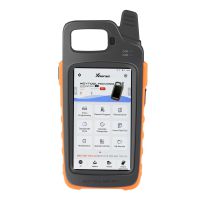 US$390.00
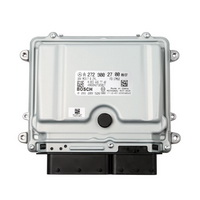 US$180.00
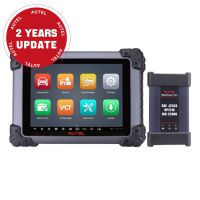 US$1,950.00
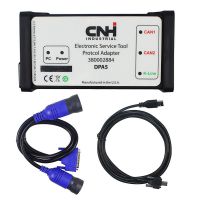 US$129.00
 US$89.00
 US$322.05
 US$521.55
 US$129.00
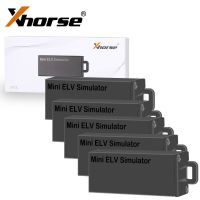 US$122.55
 US$24.99
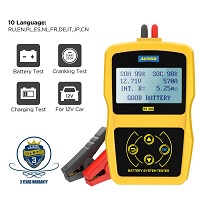 US$29.99
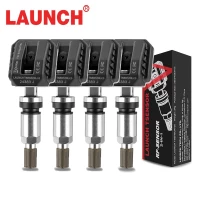 US$15.90


 US$159.00
 US$69.00
 US$39.34
 US$819.00
 US$79.90
 US$49.58
 US$219.00
 US$407.55
 US$95.00
 US$29.00
 US$89.99
 US$49.00


